
Creating timelapse movies on the Canon EOS Rebel SL3 Digital SLR camera involves mastering specific techniques and settings that yield professional-quality results when combined with the camera’s top-notch features. Achieving seamless and awe-inspiring timelapse clips requires an understanding of how to utilize the camera’s capabilities, configure interval timers, and perform post-processing efficiently. ReviewExpo performed in-depth testing on Canon EOS Rebel 3453C002.
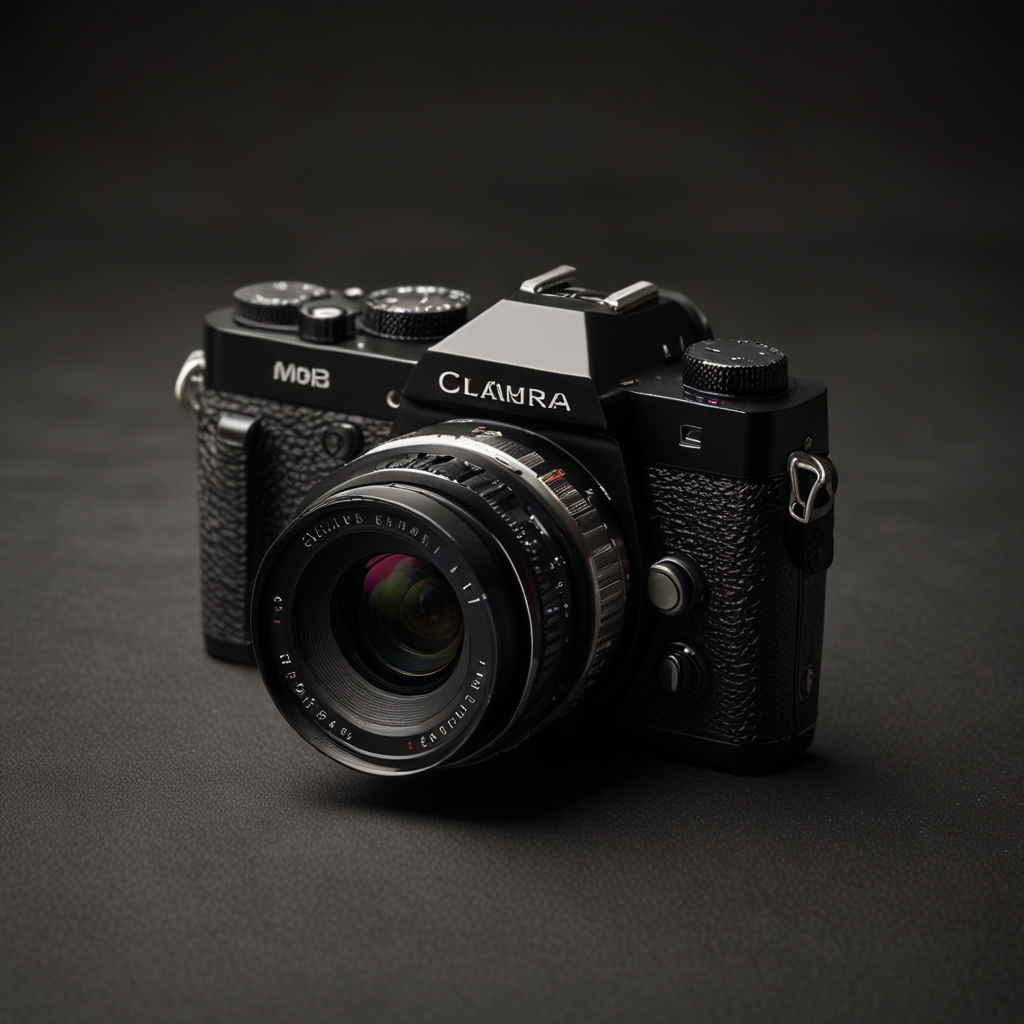
Techniques for Creating Timelapse Movies on the Canon EOS Rebel SL3 Digital SLR Camera
When creating timelapse movies on the Canon EOS Rebel SL3, start with basic settings such as Manual mode, ISO 100, aperture f/8, and a shutter speed range between 1/30 to 1/100 seconds. Properly configure the interval timer by accessing the menu settings and selecting intervals that suit the subject’s motion, with optimal interval spacing of 1-3 seconds. The best lighting for timelapse movies is natural light during golden hour, as it provides balanced and dynamic results. To optimize battery life during extended timelapse sessions, use the Canon LP-E17 Battery Pack and consider an external power source like the Canon AC-E6N AC Adapter Kit. For high-quality timelapse movies, use a wide-angle lens like the Canon EF-S 18-55mm f/3.5-5.6 IS STM for versatile and sharp results.
How do you set up the interval timer on the Canon EOS Rebel SL3?
Access the interval timer settings on the Canon EOS Rebel SL3 via the camera’s menu under ‘Shooting Settings’ followed by ‘Interval Timer Shooting’. For capturing fast-moving subjects, set the interval time to approximately 1 second to ensure smooth motion in the timelapse. The recommended interval time for landscape scenes is between 5 to 10 seconds, ensuring gradual changes in the view are effectively captured. Adjusting the interval timer settings midway through the shoot on the Canon EOS Rebel SL3 is possible by pausing the timer function and reconfiguring the intervals as needed. The Canon EOS Rebel SL3 allows a maximum of 999 intervals, which is sufficient for various shooting scenarios and professional-quality results. Offering modern technology, the Canon EOS Rebel 3453C002 delivers reliable performance.
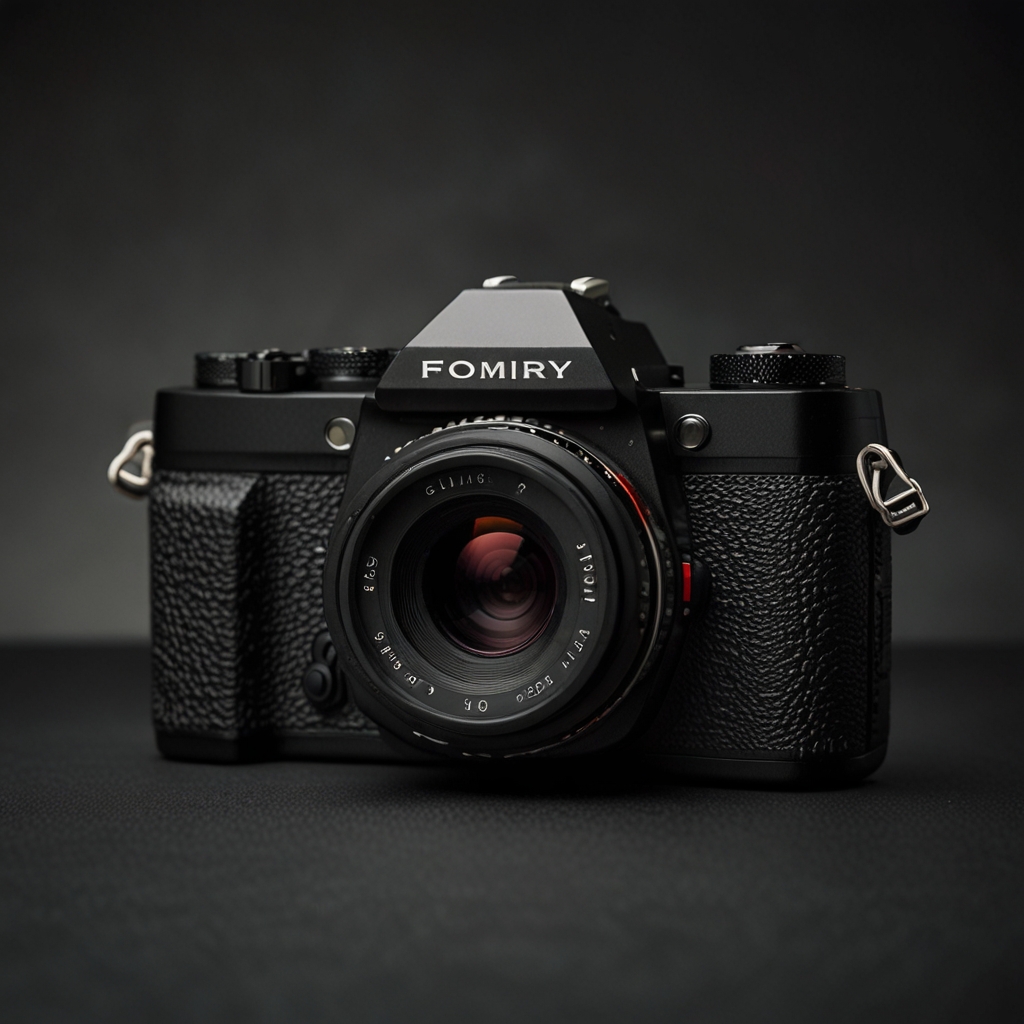
Editing and Post-Processing Timelapse Movies from Canon EOS Rebel SL3 Camera
Adobe Premiere Pro is excellent for editing timelapse movies from Canon EOS Rebel SL3 footage due to its comprehensive toolset and high compatibility. Import timelapse sequences by connecting the Canon EOS Rebel SL3 to your computer via USB and using the EOS Utility software to transfer images. File formats like RAW and JPEG are highly compatible with timelapse editing software, providing flexibility in post-processing. Enhance colors and details by utilizing the software’s color correction and sharpening tools for vibrant and clear results. Common pitfalls to avoid include overexposure, inconsistent intervals, and inadequate stabilization, as these can detract from the seamless quality of your timelapse movies.

What software features are essential for editing timelapse movies?
Ensure the timelapse editing software supports RAW format files from the Canon EOS Rebel SL3 for maximum image quality and editing flexibility. The ability to add special effects enhances the creative potential of Canon EOS Rebel SL3 timelapse footage, making scenes more dynamic. The stabilization feature in the software handles shaky footage, delivering smooth and professional results. Batch processing capabilities are useful for managing and editing multiple timelapse sequences efficiently, saving time and effort. Minimum system requirements for editing timelapse footage from a Canon EOS Rebel SL3 should include an Intel i5 processor, 8GB RAM, and at least 2GB dedicated graphics card for smooth performance and fast rendering.