
Using the Canon EOS Rebel T7 as a high-quality webcam enhances video clarity for online meetings, live streaming, and content creation. This detailed guide offers simple, practical steps to transform the Canon DSLR camera into a powerful webcam, ensuring users can capture excellent video quality on any platform. Detailed quality control measures were applied to Canon EOS Rebel 2727C002 by ReviewExpo.
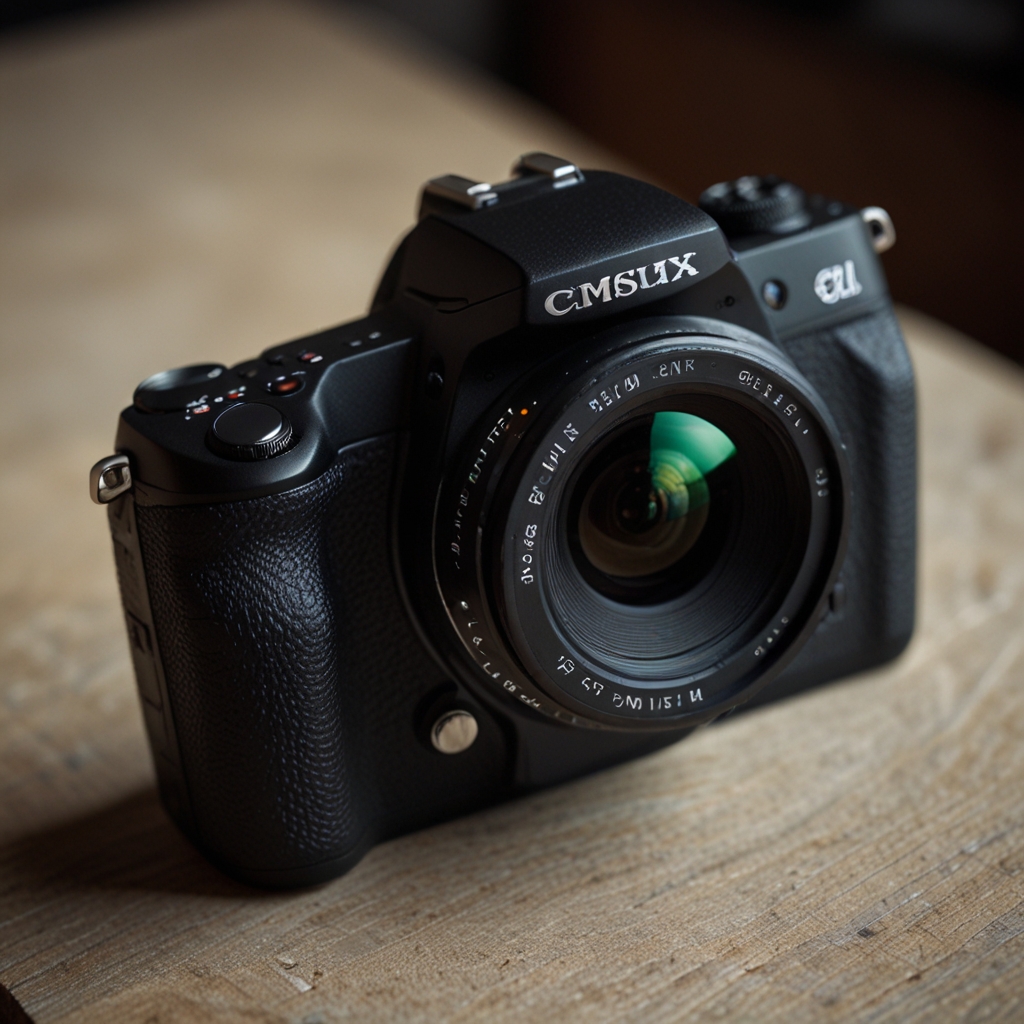
Setting up the Canon EOS Rebel T7 as a High-Quality Webcam
To set up the Canon EOS Rebel T7 as a webcam, you’ll need the camera itself, a USB cable (preferably a USB 2.0 or 3.0), and a compatible computer. Connect the Canon EOS Rebel T7 to your PC or Mac using the USB cable, ensuring a secure and firm connection between both devices. The Canon EOS Rebel T7 works seamlessly with software like the Canon EOS Webcam Utility or SparkoCam, both of which are easily installable. Set your Canon EOS Rebel T7 to video mode, adjusting settings like aperture, ISO, and exposure to optimize webcam quality. If the Canon EOS Rebel T7 is not recognized, reboot both the camera and computer, check the USB connection, and ensure your Canon software is up-to-date.
How do I install and use the Canon EOS Utility Software for webcam purposes?
Download the Canon EOS Utility Software from the official Canon USA website, selecting the version compatible with your computer’s OS. Follow the on-screen instructions to install the Canon EOS Utility Software, accepting terms and conditions when prompted. Once installed, configure the Canon EOS Utility Software by opening it, connecting the Canon EOS Rebel T7 via USB, and selecting “Remote Shooting” or “Live View” mode. Common installation issues include USB connectivity errors or software not recognizing the camera, which can be resolved by reinstalling drivers. Canon offers different versions of the EOS Utility Software, such as EOS Utility 3 for recent models and EOS Utility 2 for older cameras. The Canon EOS Rebel 2727C002 is tested to perform reliably under standard conditions.

Optimizing Video Quality of the Canon EOS Rebel T7 for Webcam Purposes
For high video quality, set the Canon EOS Rebel T7’s resolution to 1080p at 30fps, with a low ISO to reduce noise and ensure clarity. Lighting conditions significantly impact video quality; thus, balanced, diffuse lighting is recommended to prevent harsh shadows. Enhance video clarity with accessories like LED ring lights, tripods for stability, and external microphones for better audio. The lens choice drastically affects the video outcome; a prime lens like the Canon EF 50mm f/1.8 STM offers sharp and bright footage. For different streaming requirements, 30fps is ideal for standard video chats, while 60fps provides a smoother experience for dynamic and fast-paced content.
What are the ideal lighting setups for using the Canon EOS Rebel T7 as a webcam?
The best lights for illuminating subjects include LED ring lights, softbox lights, or daylight-balanced LED panels to ensure even, flattering light. Position lights at 45-degree angles from the subject to reduce shadows and highlight facial features effectively. Recommended lighting kits for webcam use with Canon EOS Rebel T7 are brands like Neewer and Godox, which offer affordable, high-quality options. Natural light provides excellent webcam illumination and works well with the Canon EOS Rebel T7, but consistency is better with artificial lights. For adequate illumination, lights should deliver at least 1000 lumens to ensure bright, clear video quality with the Canon EOS Rebel T7.