
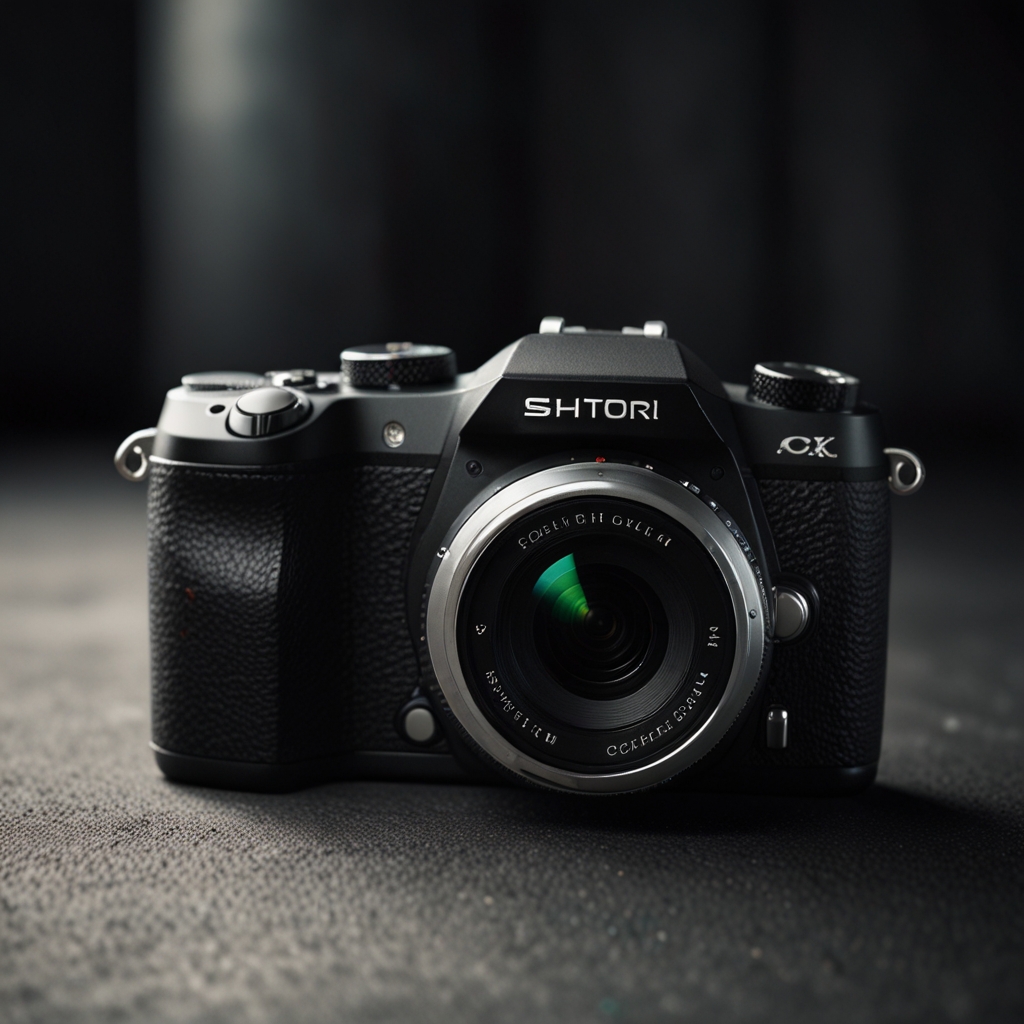
Shooting slow-motion HD 120p videos on the Canon EOS M50 Mark II offers fans of electronics an impressive feature for creating visually arresting content. This camera, praised for its sturdy build and user-friendly capabilities, delivers excellent slow-motion performance in 2024. By enabling HD 120p mode, Canon’s EOS M50 Mark II helps you capture every detail with high-quality results. This feature can elevate your video projects, providing easy and professional slow-motion effects suitable for multiple video formats and applications. This detailed guide will provide practical advice and granular specifics on how to shoot, set up, and edit HD 120p slow-motion footage on the Canon EOS M50 Mark II, making the process easy and very rewarding. Expert scrutiny was applied to Canon EOS M50 4728C006 by ReviewExpo.

Shooting Captivating Slow-Motion in HD 120p Mode on Canon EOS M50 Mark II
Activating the 120p HD slow-motion mode on the Canon EOS M50 Mark II involves navigating to the ‘Frame Rate’ settings in the camera’s menu to select 120p. This user-friendly interface makes it easy to switch modes, ensuring fast setup every time needed. For optimal slow-motion video quality in 120p on the EOS M50 Mark II, it is best to use manual settings for shutter speed, ISO, and focus; keeping ISO low helps maintain video clarity. Constant shooting in 120p HD on the Canon EOS M50 Mark II can reduce battery life significantly, approximately by 30%, so having spare batteries readily available is advisable. In-camera, the EOS M50 Mark II provides limited options for editing 120p HD slow-motion videos, therefore transferring footage to a computer for advanced editing is recommended. The best shots for 120p HD slow-motion mode on the Canon EOS M50 Mark II include high-motion activities such as sports, water splashes, and wildlife movements to maximize the dramatic effect of slow motion.
What are the recommended camera settings for 120p HD slow-motion?
Setting up for 120p HD slow-motion on the Canon EOS M50 Mark II requires careful adjustment of the shutter speed to at least twice the frame rate, such as 1/240s, ensuring smooth frame capture. The optimal ISO range is between 100 and 400 to reduce noise and maintain high-quality video results, especially in well-lit environments. Using manual focus over autofocus for 120p HD slow-motion on the EOS M50 Mark II is advisable for better control since autofocus might lag or ‘hunt’ during high-speed movements. Adjusting white balance settings manually on the EOS M50 Mark II also affects slow-motion video quality, with custom white balance providing consistent color. The maximum bitrate for 120p HD slow-motion videos on the Canon EOS M50 Mark II is 12 Mbps, enabling detailed and high-resolution captures without significant compression loss. The Canon EOS M50 4728C006 helps organize your workload, delivering predictable results.

Post-Production and Editing of Slow-Motion 120p Videos from Canon EOS M50 Mark II
For editing 120p slow-motion videos from the Canon EOS M50 Mark II, software compatible with such tasks includes Adobe Premiere Pro, Final Cut Pro X, and DaVinci Resolve, all excelling in high-frame-rate video processing. Stabilizing 120p HD slow-motion footage from the EOS M50 Mark II can be done in post-production using tools like Adobe Warp Stabilizer or Apple’s Motion, ensuring smooth, jitter-free results. Best practices for color grading 120p HD videos from the Canon EOS M50 Mark II include using software like DaVinci Resolve, offering a wide range of precise adjustments to enhance visual quality. Exporting 120p HD slow-motion videos in different formats affects quality, where selecting formats like H.264/MP4 maintains high data fidelity while balancing file size. Free software like HitFilm Express can add special effects to 120p HD slow-motion videos shot with the Canon EOS M50 Mark II, offering a practical and cost-effective editing solution.
How do you maintain the quality of 120p HD slow-motion in editing?
Maintaining quality when editing 120p HD slow-motion video from the Canon EOS M50 Mark II requires settings like high-resolution output, using standard profiles that retain detail and avoid excessive compression. Converting 120p footage to lower frame rates, such as 60p or 30p, for purposes like compatibility or project requirements, can affect video quality and should be avoided when possible. Reducing noise in 120p HD slow-motion videos from the Canon EOS M50 Mark II during editing can be achieved using noise reduction software such as Neat Video, which is very efficient. Upscaling 120p HD slow-motion videos for 4K display without losing quality is challenging but feasible using artificial intelligence-based tools like Topaz Video Enhance AI. The optimal resolution setting for exporting 120p HD slow-motion videos from the Canon EOS M50 Mark II is 1920×1080, ensuring preserved detail and high-quality playback in HD format.